Tutorial #1:
Creating Traffic Jam
Part II: Designing the Form
First, I will be using Visual Basic 2008 Express Edition. I will try to point out any differences between using 2008 and using 2005. However, there is no reason to not follow along with 2008 as it is free to download from Microsoft. Just follow this link:

Now that that is out of the way, let's go ahead and get started.
This step will not contain any coding. We will simply be creating the Windows Form to be used to display the game and placing all of the controls on it. as they need to be placed. It is important that you follow along carefully if you are not familiar with Windows programming as it can seem quite daunting at first. It isn't too bad as long as you follow along carefully.
Open Visual Basic 2008. You should now be at the Start Page for Visual Basic 2008. On the left hand side, you will see a box that says "Recent Projects". At the bottom of this box, you should see a line that says "Create: Project". Click the project on that line.
Leave the next window on Windows Forms Application and give your program a name. I will use "Traffic Jam".
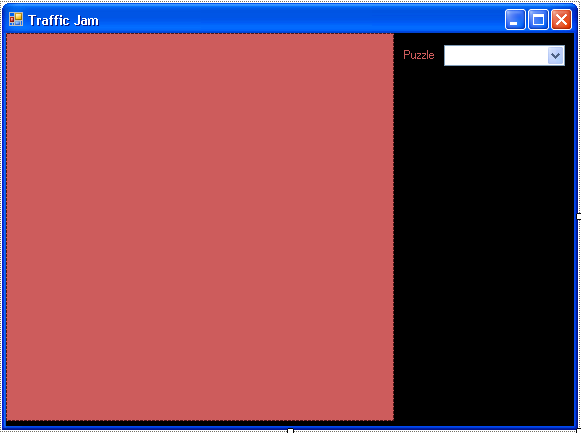
Expand the form a little, then hover over the Toolbox tab on the left of the screen. Expand the "All Windows Forms" view and then double-click on the Picture Box. You may have to scroll down to find it. This Picture Box control will represent our game board. Remember that our game board needs to be 384x384. However, we will be drawing a small border around the actual playing area, so let's try 388x388. This will give us a two pixel border on each side. To set the size, select the Picture Box and look at the properties window on the right hand side. Scroll until you see "Size" and enter 388, 388. You may need to expand your form more. Find the name property and rename the Picture Box to "pbPuzzle".
I do not like the plain gray background of either the form or the Picture Box, so select the form and choose a new background color if you would like. I am going to use black. I also set the background of my Picture Box to "Indian Red", but this will not matter once we actually start coding.
The form's caption is rather drab, so let's change it. Select the form and look for Text in the list. Type what you wish. I will use "Traffic Jam". I also do not like the form being named "Form1", so I change the name to "frmMain". (This is a personal preference. The user will never see this name.)
Now, we need a way to select a puzzle, so add a drop down Combo Box by double-clicking on the "ComboBox" in the toolbox. Change its name to "cmbPuzzle" and place it where you would like it.
We also need a label, so create one and change its text to "Puzzle" and place it near the ComboBox. I placed them to the right of the PictureBox at the top.
For now, this is what my form looks like:
This about does it for the visual design of the form for now. Next, we code...